

Send Notifications
View Announcements
All Announcements can be found under the Notifications page. Announcements can be accessed from two locations:
-
click View All Announcements from the Announcements widget on the homepage, or
-
click Announcements from the left menu.
You can view Class Group Announcements from your Class Groups, under the Notifications tab.
Create Announcements
There are two types of Announcements:
-
Class Group Announcements
-
School Announcements (for SLS Admins only)
-
From the homepage, click the Create New Announcement widget to open the New Class Group Announcement subpage. Alternatively, you can enter this subpage by
-
clicking View All Announcements from the Announcements widget on the homepage followed by Add New Announcement,
-
opening the left menu and clicking Announcements, followed by Add New Announcement,
-
entering a Class Group, under the Notifications tab, clicking Add Class Group Announcement.
-
-
On the New Class Group Announcements subpage, select the Class Group(s) you wish to send an announcement to, from the dropdown list. Should you create an Announcement from a Class Group, the Class Group would be specified for you.
-
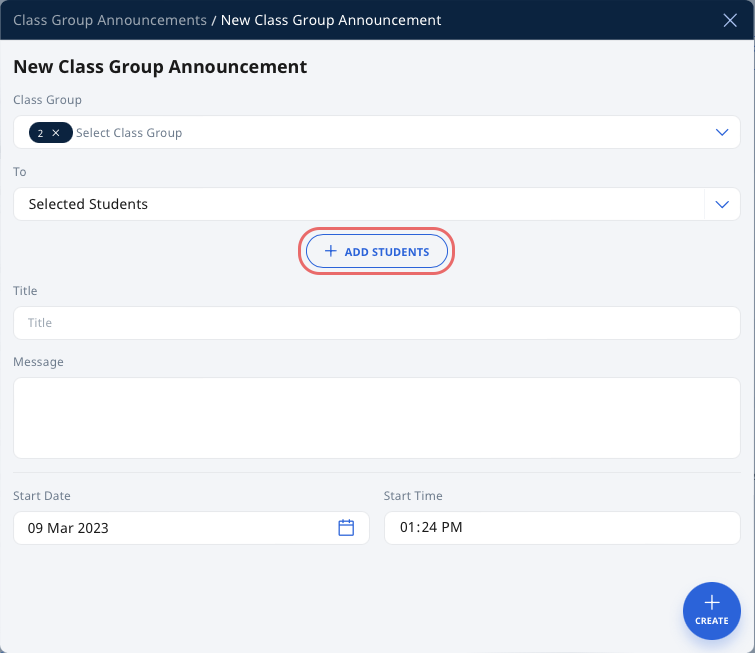
You can choose to send the Announcement to All Students and Teachers within the Class Group or to Selected Recipients from the dropdown list.
-
If you choose to send the Announcement to selected recipients, click Add Recipient followed by selecting Student or Teacher.
-
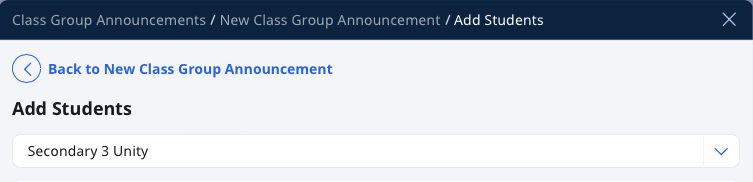
In the Add Students/Teachers subpage, select the checkboxes on the left to include students/teachers into the Announcement. You can toggle across Class Groups (should you choose more than 1 Class Group) from the dropdown list.
-
Click Add to proceed.
-
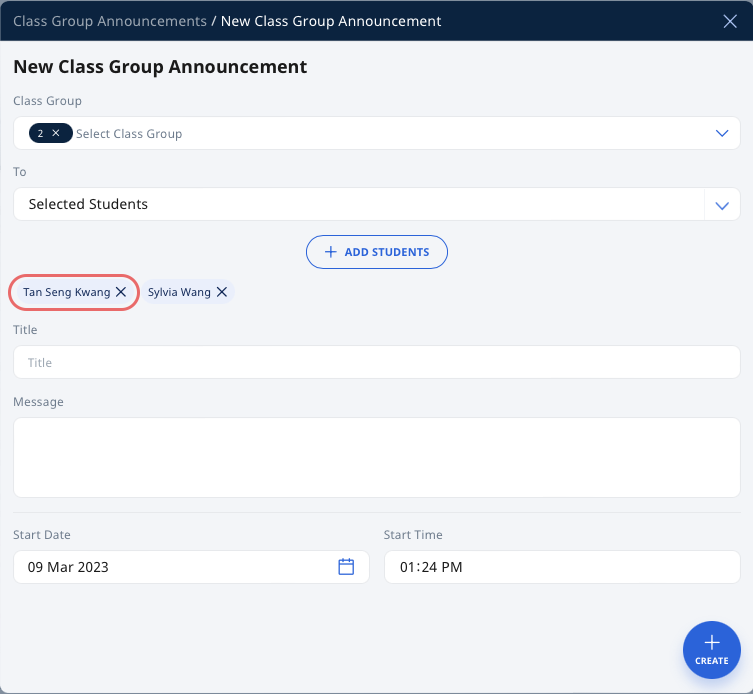
The names of the selected students/teachers will be shown. To remove them from the list, click the X beside their names.
-
Note: All Announcements created will expire after 90 days.
Enter Announcement Message
-
Enter the Title. This will be displayed in the Announcement listing.
-
Enter the Message in the Rich Text Editor.
-
Select the Start Date and Time of the Announcement.
Note: The Announcement will only appear on the recipient’s homepage, Notifications page, and the Notifications tab within the Class Group page after the Start Date. The Announcement will expire in 90 days from the start date. -
Click Create.
-
Once the Announcement has started, the recipients will receive a Notification.
Edit Announcements
All your Announcements can be found on the Notifications page.
-
From the Notifications page, click Created By Me
-
Under the Created By Me tab, click the Announcement card, followed by the Overflow (3-dot icon) and select Edit.
-
You can only make changes to the Title, Message, Start Date and Start Time.
Note: You can only make changes to the Start Date and Start Time if the Announcement has not started. -
Click Save at the top of the subpage to confirm.
Delete Announcements
-
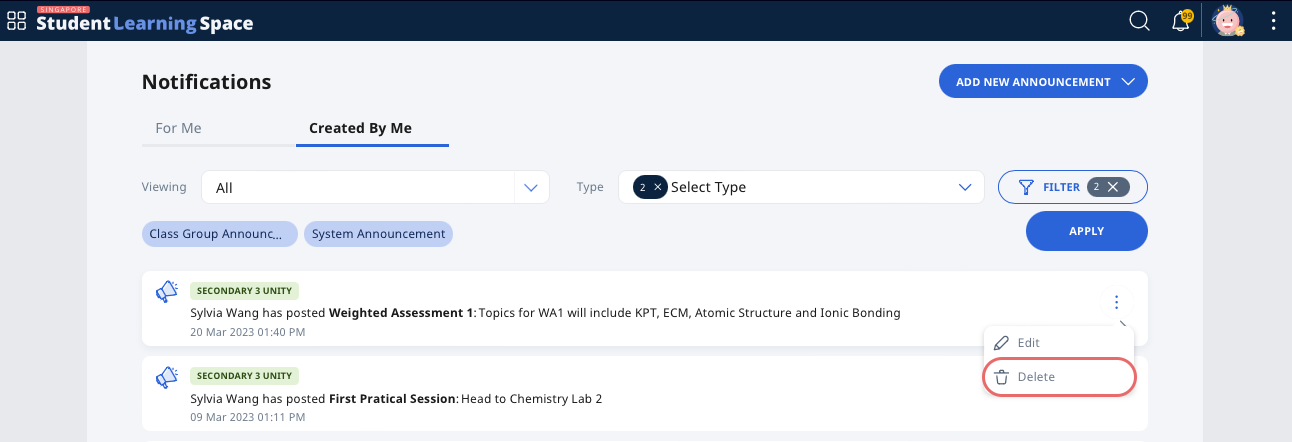
On the Notifications page, click the Announcement card, followed by the Overflow (3-dot icon) and select Delete.
-
You can also delete the Announcement while editing it. To do so, click the Overflow (3-dot icon) on the Edit Announcement subpage, followed by Delete.
-
In the confirmation prompt, click OK.