

Assignment Settings
Assignment Settings
Allow Students to Copy Assignments
You can allow students to copy an Assignment to the students' My Drive folder to enable self-study. Students can only copy an Assignment without their attempted responses.
Note: You will not be able to view or monitor copies of the Assignment in student's My Drive folders.
-
Copying Permissions can be turned on from:
-
Module Editor
-
Within an Assignment
Note: Copy Permissions in a copied assignment cannot be revoked. It is recommended that teachers turn Copy Permissions on if they would like students to reattempt the assignment for self-study.
-
-
From the Module Editor page, click the Pencil icon in the header.
-
From within an Assignment, open the right menu and select Edit.
-
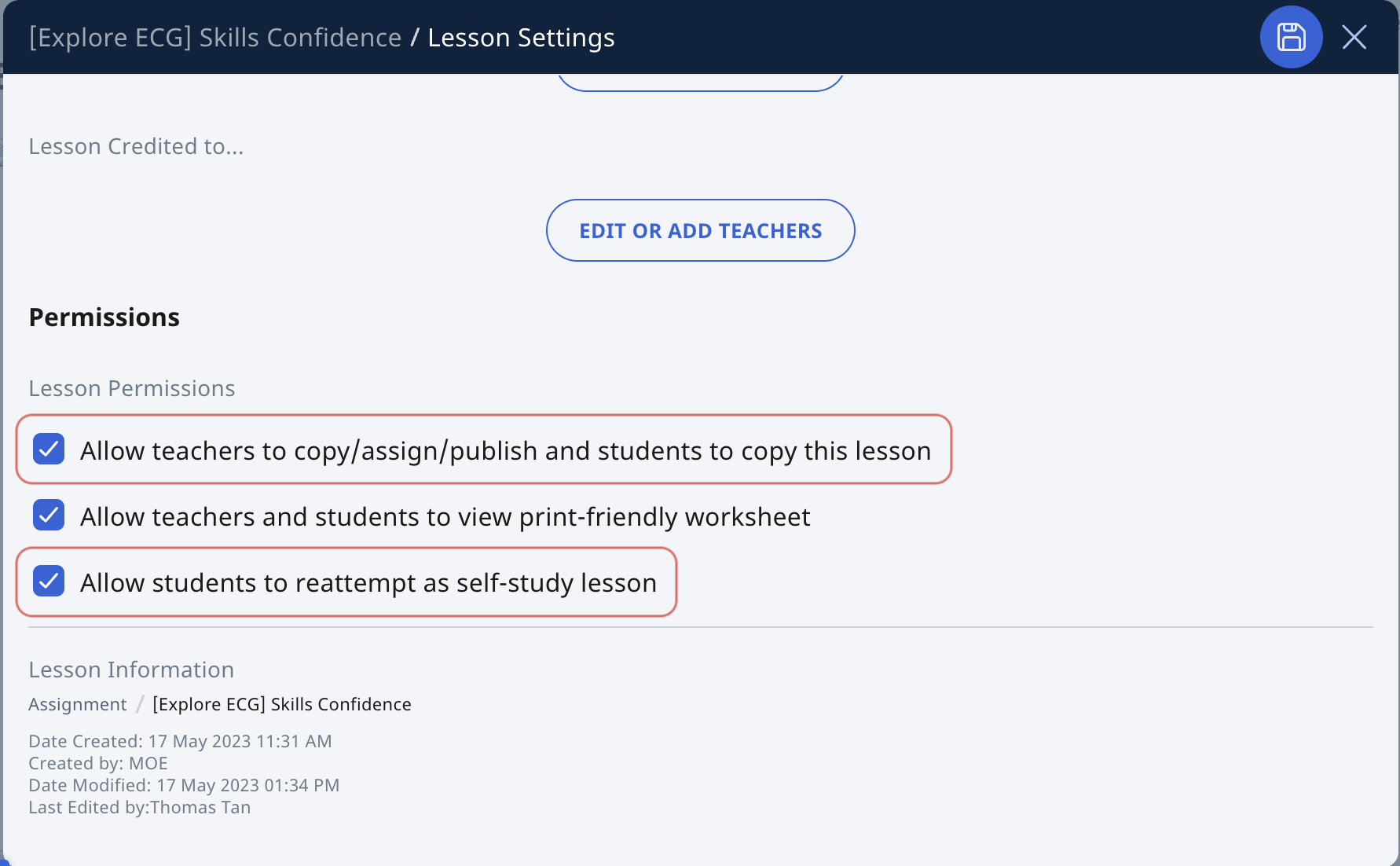
In the Module Settings subpage, under Permissions, check the box besides Allow teachers to copy/assign/publish and students to copy this Module.
-
To allow students to reattempt the Assignment for self-study, check the box besides Allow students to reattempt as self-study Module.
-
Click Save to confirm your selection and X to close the subpage.
Note: If Copy Permissions is enabled, students will be able to access "Copy to My Drive" on the right panel of the Assignment. Students will be able to access the copied Assignment from their My Drive.
Allow Students to Share Assignments
Teachers can toggle Sharing Permissions to allow students to share their Assignments with other students. Students will be able to see other students' responses, Notes, and Teacher Feedback once shared. Once allowed, permission to share cannot be revoked.
-
Sharing Permissions can be turned on while:
-
Click the Overflow (3-dot icon) on an Assignment Card and click Manage. Alternatively, enter the Assignment, click the Overflow (3-dot icon) to open the right menu and select Manage Assignment Settings.
Note: Sharing Permissions cannot be revoked once set. It is recommended that teachers turn Sharing Permissions on only after all students have attempted all questions in the assignment.
-
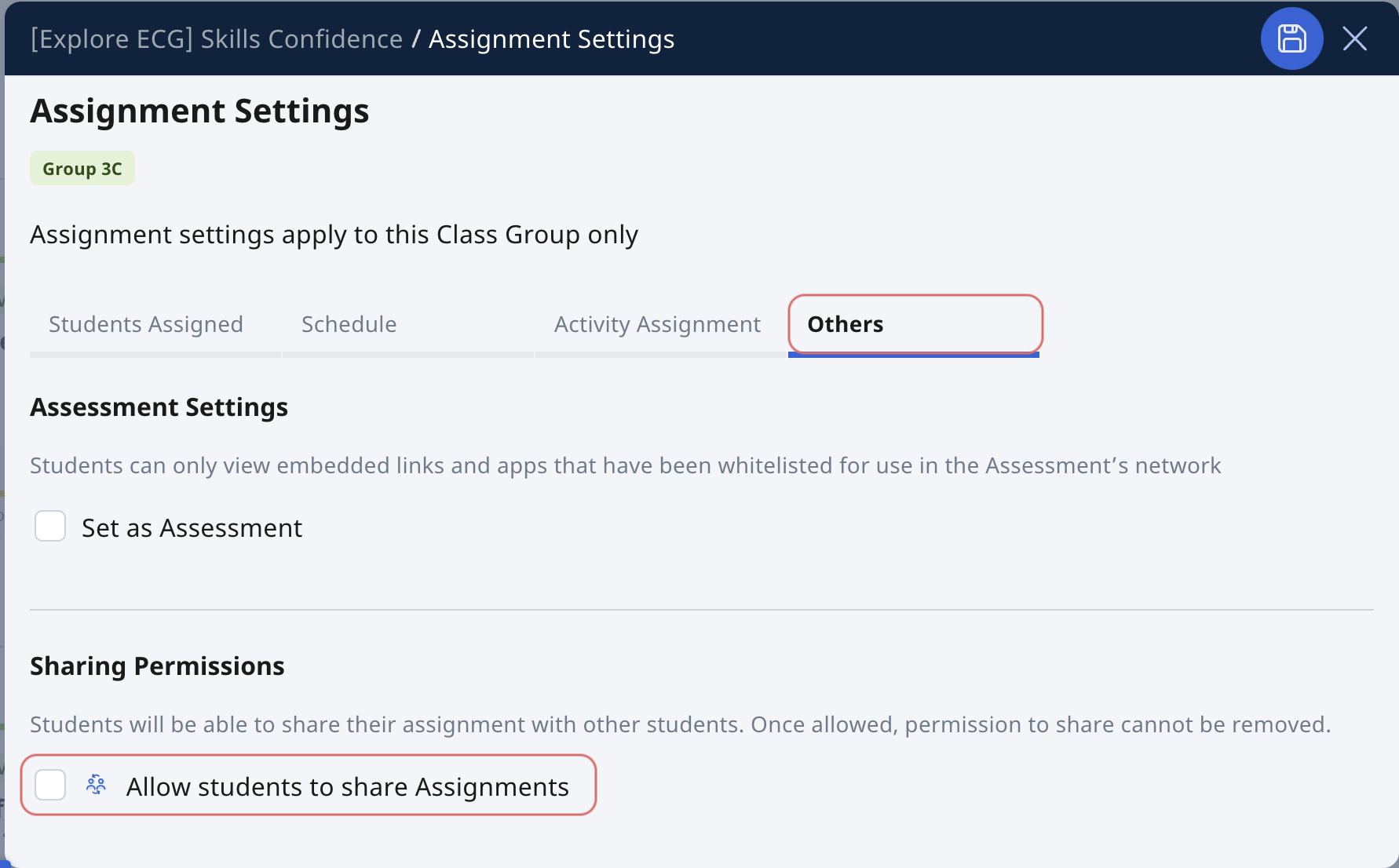
On the Assignment Settings subpage, select the Others tab.
-
Sharing Permissions is turned off by default. To allow students to share their Assignments, check the box beside Allow students to share Assignments. Click Save and Proceed to confirm.
-
-
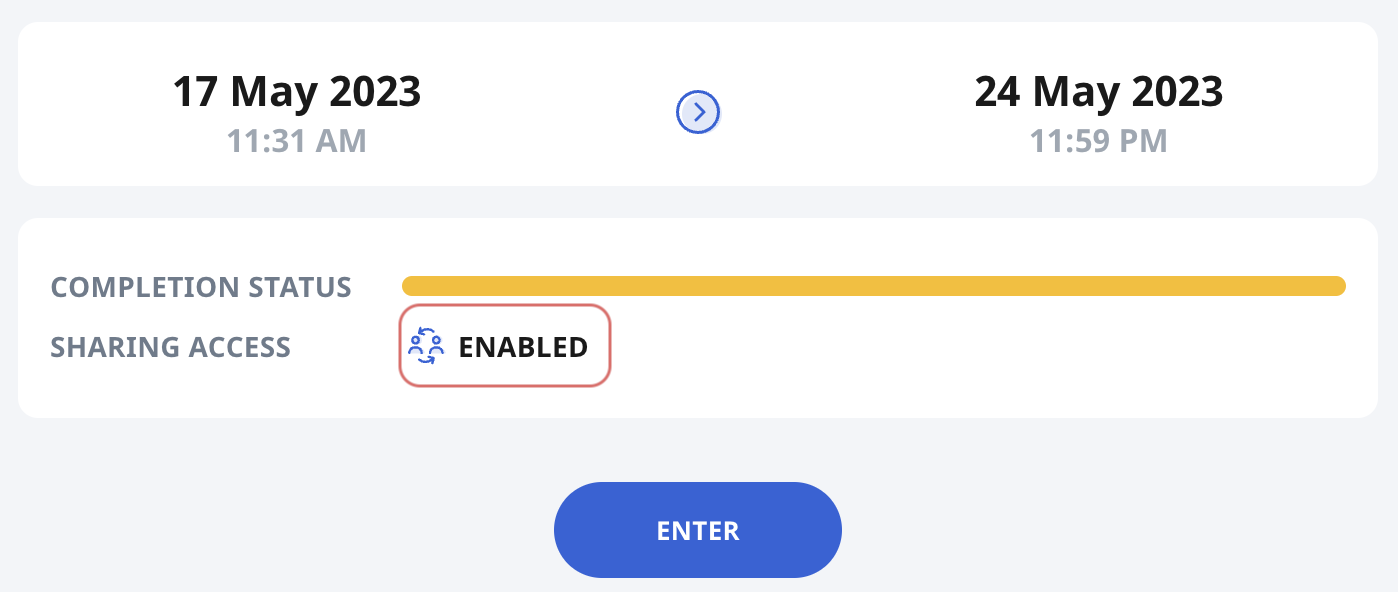
If sharing access is enabled, the Assignment Sharing icon will be seen on the Assignment card and on the Assignment Cover page.
Assignment sharing is mutual between two students. For example, student A requests to share with student B, and student B accepts. Both students A and B can see each other's assignment. Student A can further share his/her assignment with student C by repeating the process to request and accept.
-
The possible interactions when an assignment is shared are as follows:
-
View each other's assignment, including Activities with restricted access where the other student might not otherwise be able to view.
-
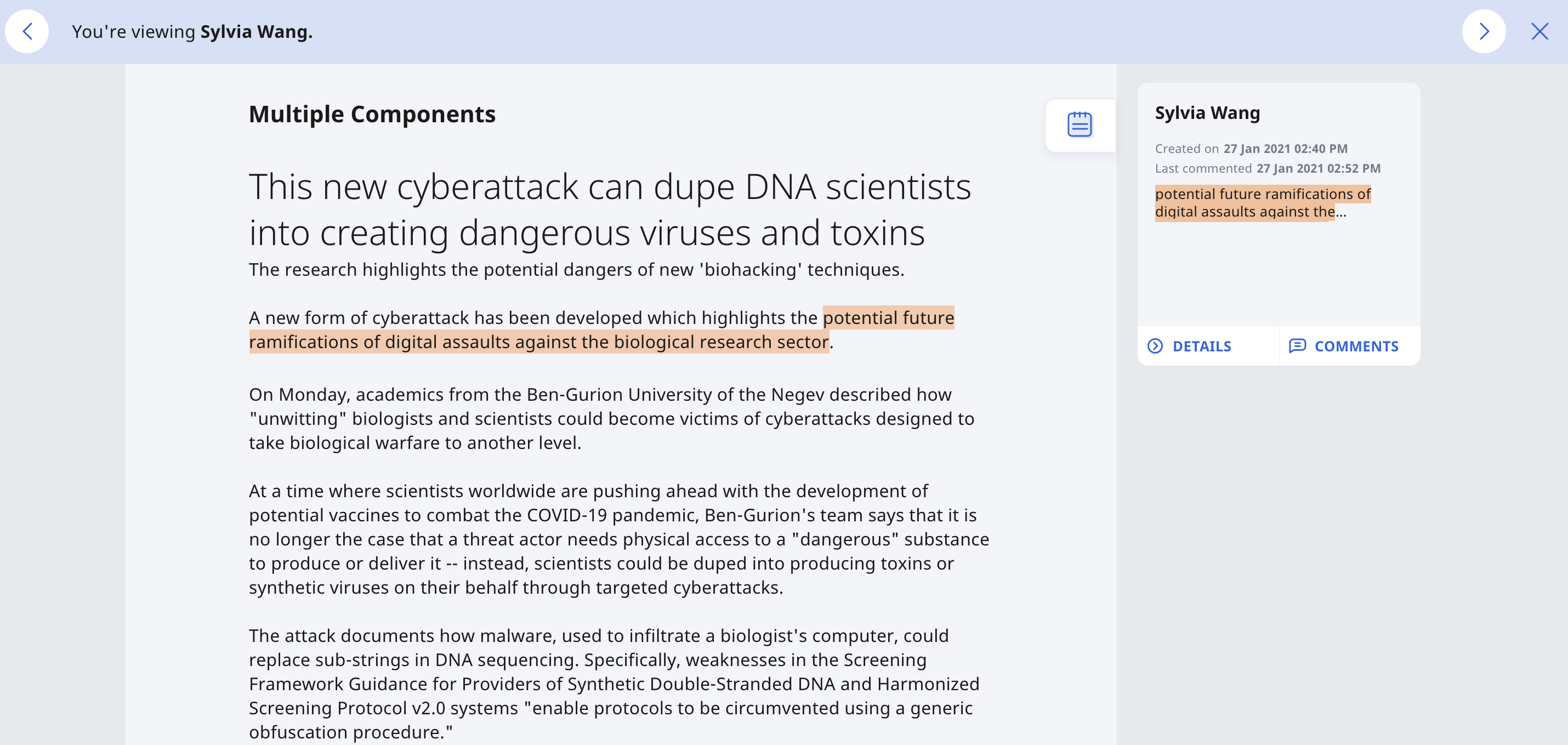
View and comment on each other's Notes and Annotations (highlight).
-
Viewing student's highlights and notes.
-
View teacher's Annotation made to a student's copy of the Assignment.
-
View each other's answers and scores to questions, and any Teacher Feedback.
Note:
-
-
Teachers are able to delete comments.
-
Students will not be able to complete the Assignment on behalf of the student who shared the Assignment.
-
To understand how students are able to share their Assignment/Assessment, refer to Request to Share Assignment.