

Assign MOE Library Modules
Assign MOE Library Modules
Assign MOE Module as Assignment
-
From the homepage, open the left menu and click Resources, followed by MOE Library.
-
Click the MOE Library Module card that you would like to view.
-
On the Module View page, click the Assign icon on the header
-
You may wish to rename the Assignment Title and edit the Permission Settings. The following Module Permissions are available:
-
Allow teachers to copy/assign/publish and students to copy this Module
-
Allow teachers and students to view Print-Friendly worksheet
-
Allow students to reattempt Module as self-study
-
-
Click Next to continue. This will lead you to the Assignment Summary page where you can review the draft assignments and their settings before clicking Assign to confirm.
Add MOE Module as Class Group Resource
Important: If module permissions to allow teachers to copy/assign/publish and students to copy this Module are not selected, it will not be possible to add the Module as a Class Group Resource.
-
Click the MOE Library Module card that you would like to view.
-
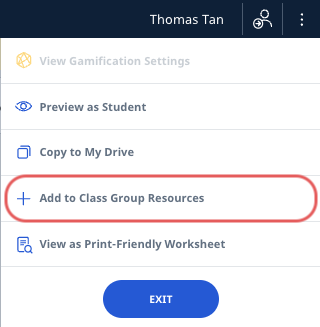
Click Overflow (3 dots icon) on the header to open the right menu and click Add to Class Group Resources.
-
Select the Class Group(s), followed by Add.
-
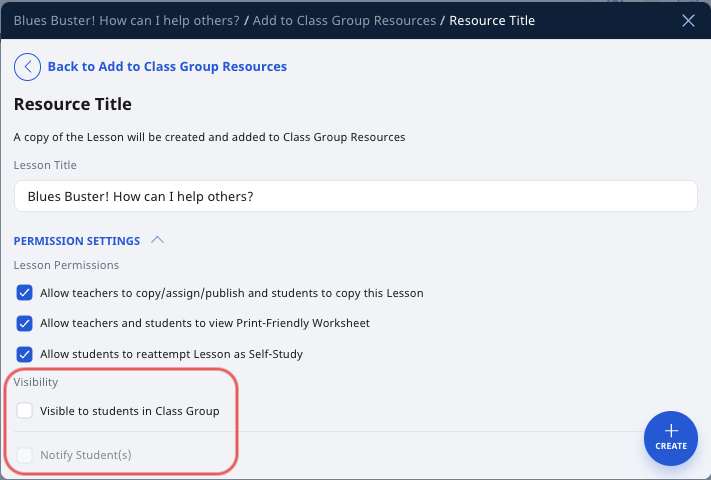
You may wish to rename the Resource Title, and edit the Permission Settings:
-
Module Permissions:
-
Allow teachers to copy/assign/publish and students to copy this Module
-
Allow teachers and students to view Print-Friendly worksheet
-
Allow students to reattempt Module as Self-Study
-
-
Visibility
-
Visible to students in Class Group
-
Notify Student(s) - this checkbox will be active if Resource is set to be visible to students in Class Group.
-
-
-
Click Create to add the Module as a Class Group Resource.