

View Module Details
View Module Details
You can access the Details of Modules found in Starred Resources, Community Gallery and MOE Library.
View Module Details from Community Gallery and MOE Library
-
Open the left menu and select Resources. Click Community Gallery or MOE Library.
-
You may use the global Search Bar to search for a particular Module. You may use the Filters or Guided Search to refine your search results.
-
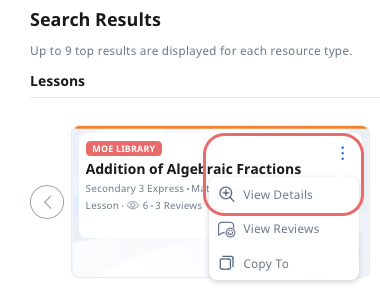
On the Module card, click the Overflow (3-dot icon) followed by View Details.
Note: The label on the card will indicate the location of the Module (e.g. MOE Library).
-
You will be able to view details as such the Sections and Activities within the Module, Location, Created by, Last Edited by, View Count, and Keyword Tags.
-
You can view Teacher Notes by toggling View Teacher Notes on/off.
-
To view the Module in a new tab, click the Expand icon

.
View Module Details from Starred Resources
-
Open the left menu and select Resources. Click Starred Resources to access your Starred Resources folder.
-
For Media Objects and Components, click View Details below the resource title. You can view details such as Location, Title, Last Edited by, Keyword Tags, and where the Media Object is being used.
-
For Apps and Websites, click View Details below the resource title. You can view details such as Title, Description, Contact Number, Email, and Keyword tags.
-
For Modules, click the Overflow (3-dot icon) and click View Details. You can view details such as the Sections and Activities within the Module, Location, Created by, Last Edited by, and View Count (for MOE Library and Community Gallery Resources).