

Search for Resources
Using Search Bar from Homepage
-
Click the Magnifying Glass icon
 on the header of the homepage to open the Search Bar.
 -
Enter your search terms, if any, in the Search Bar.
-
Press Enter to return your search results.
Note:
-
If you are unsure of what you are searching for, you can leave the Search Bar empty and press Enter to return your search results.
-
You may also select the area of search and indicate whether you are searching for the Title/Description/Module Tags/Subject/Level, a Content Map or a specific Author/Collaborator.
-
You can also search directly from the various Resource pages (e.g. My Drive, Community Gallery, MOE Library, App Library, External Resources).
Add Search Filters
-
On the Search page, select the Area of Search, Subject and Level from the dropdown list.
-
Under Area of Search, select from:
-
Title/Description/Tags/Subject/Level
-
Content Map
-
Author/Collaborator
-
-
Under Subject, select from:
-
Assigned Subjects
-
Followed Levels (if any)
-
Other Subjects
-
-
Under Levels, select from:
-
Assigned Levels
-
Followed Levels (if any)
-
Other Levels
-
-
To add more search filters, click More Filters.
-
Under Resource (Resource Type), select from:
-
Modules
-
Questions (or Question Types)
-
Media (or Media Types)
-
Apps
-
Websites
-
-
Under Location, select from:
-
My Drive - your own resources and those shared with you
-
Community Gallery - Modules shared by teachers
-
MOE Library - Resources produced by MOE
-
App Library - App Resources integrated with SLS
-
External Resources - Whitelisted websites that can be embedded in SLS.
Note: Refine your search by using Guided Search.
Add Topic Filters
-
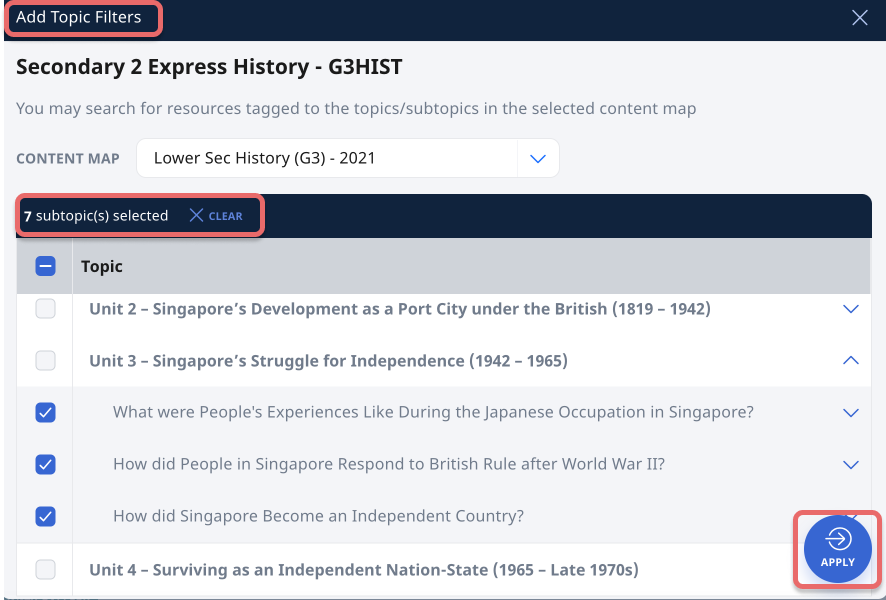
You may also select Add Topic Filters to filter according to Topics or Sub-topics.
Note: You may search for Resources based on Topics or Sub-topics if they have been tagged to a Content Map.
-
To add topic filters, select one Subject and one Level from the dropdown list.
-
On the Add Topic Filters subpage, select the relevant Content Map dropdown list.
-
Select the checkbox to the left of the Topic, Subtopics, or Learning Outcome to narrow down the search results.
-
Click Apply to view Search Results based on Topics of Sub-topics.
View Search Results
-
You can sort the resources by Relevance to your search term(s), Popularity (only in Community Gallery or MOE Library), or according to the date of the latest edit.
-
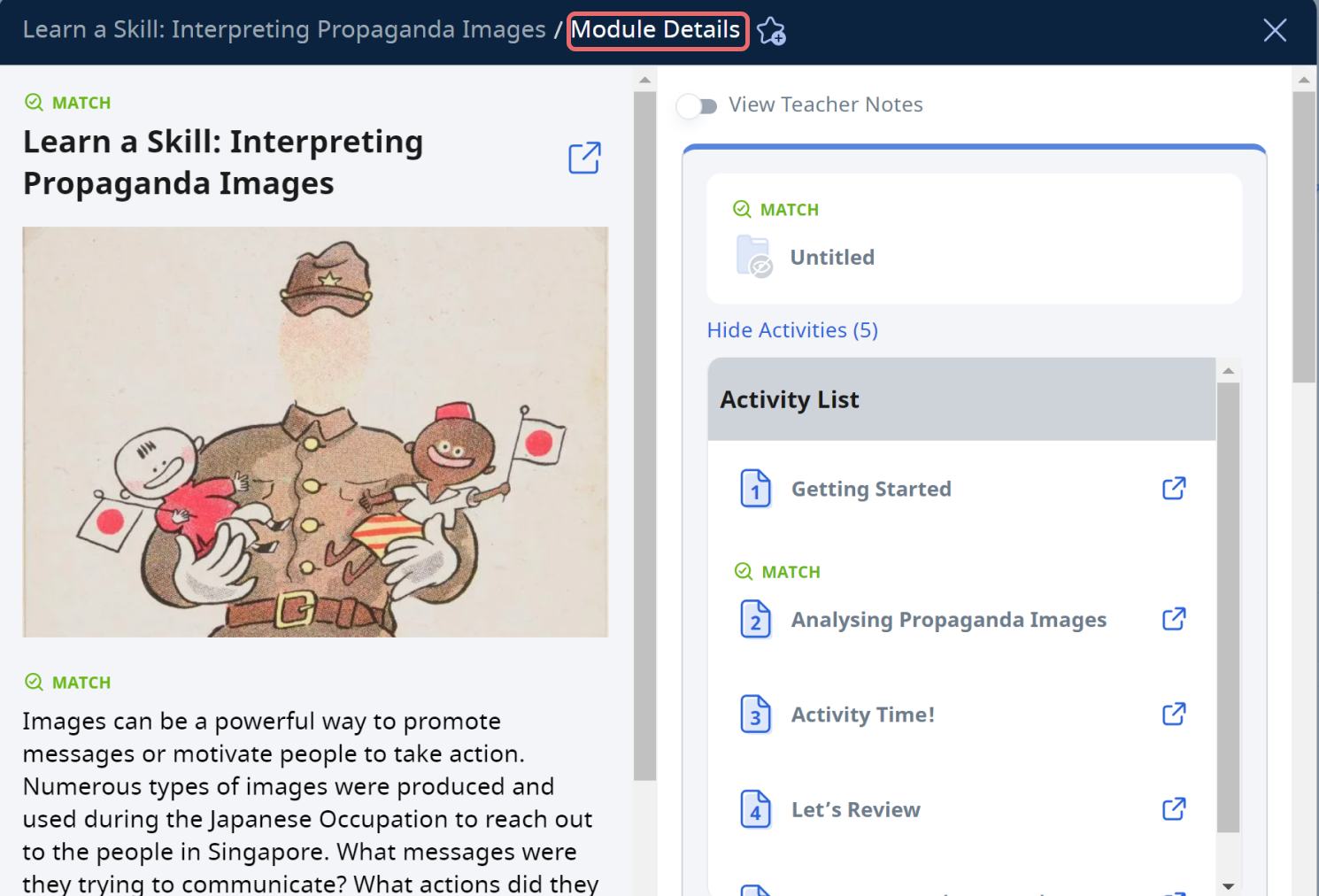
Click the Module card to view Module Details. In Module Details, you will be able to view the following information:
-
Resource Title
-
Resource Description
-
Teacher Notes (if any)
-
Module Location
-
Subject and Level (for Modules only)
-
Type of Resource
-
Number of Views (for Modules only)
-
Keyword Tags
Note: Resources that are downloadable can be downloaded from the Resource card.
-
-
To view the Module Reviews, click the Overflow (3-dot icon) found on the top right of the Module card, followed by See Reviews. Click here to learn how to leave a Review.
-
To make a copy of the Module, click the Overflow (3-dot icon) found on the top right of the Module card, followed by Copy To. Click here to learn how to copy a resource to My Drive.
-
To open the Module, click on the Expand icon next to the Module title.
Video Tutorial
-