

Assign Modules
Create Assignments
You can create an Assignment by assigning a Module to students in your Class Groups.
You can turn your Assignment into an Assessment. An Assessment card is differentiated with a beige background.
Note: For a better user experience, Assignments with over 100 assignees will need to be split into multiple assignments with a maximum of 100 students.
Assign a Module
Important: If Module Permissions to allow teachers to copy/assign/publish and students to copy this module are not checked, it will not be possible to assign the Module.
-
From the homepage, open the left menu and click Resources, followed by My Drive.
-
Click Open under the Module Title.
-
On the Module View page, click the Assign icon

found on the top right of the header.
-
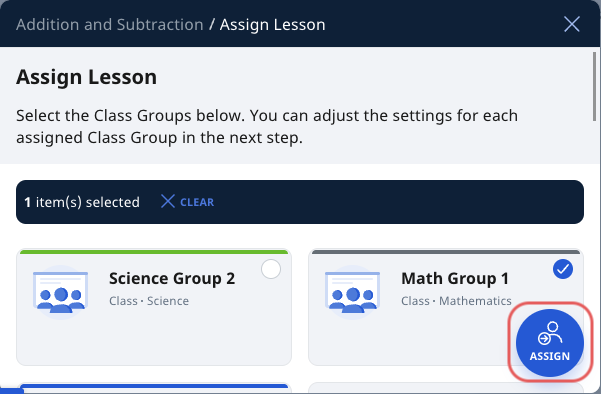
On the Assign Module subpage, you will see all the Class Groups that are assigned to you. Class Groups that you have created can be found here too. Select the Class Groups you would like to assign the Assignment to, then click Assign.
-
Alternatively, from a Class Group page under the Assignments tab, click Add Assignment to assign a Module.
-
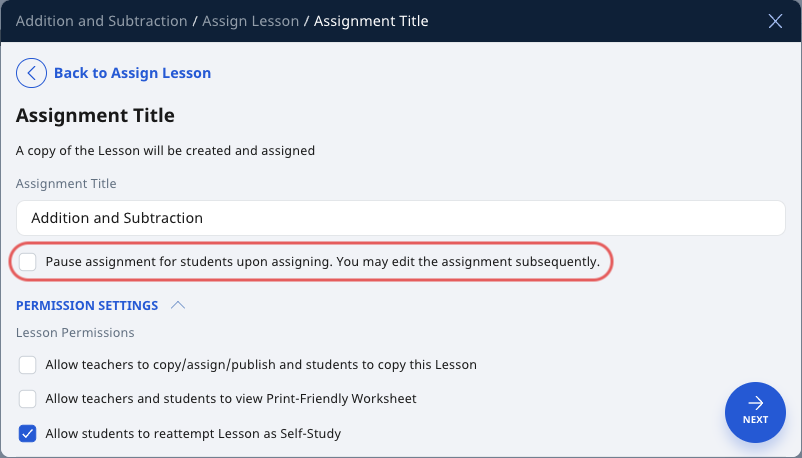
On the Assignment Title subpage, you may edit the Assignment Title and Permission Settings.
-
You may also Pause the Assignment upon assigning by checking the relevant checkbox.
-
You may also adjust the Permission Settings. These permission settings will not affect your current Module in your My Drive, but subsequent copies of this Assignment.
-
Click Next to proceed to the Assignment Summary Page.
-
Click Assign, found on the top right of the Assignment Summary page to assign the Module.
Note: For Module with multiple Sections, it may take some time for the Assignment to appear on your Assignment List.
Quick Assign from Class Group
-
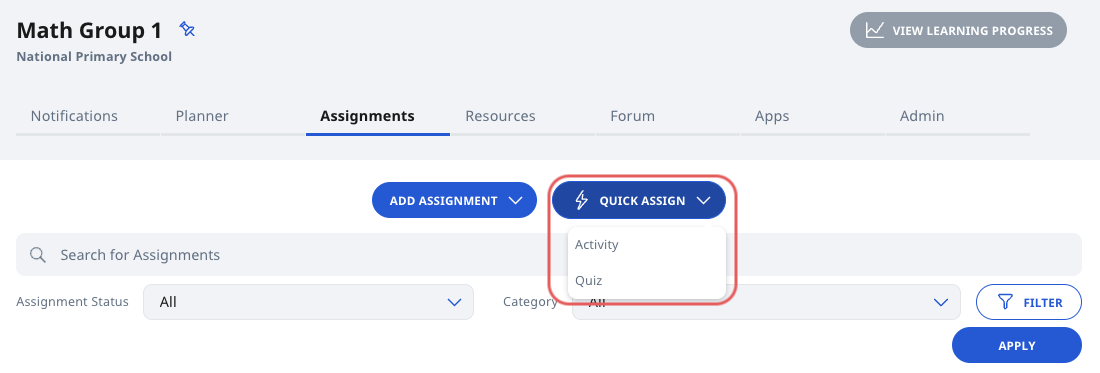
From a Class Group, click Quick Assign and select Activity or Quiz.
-
Once selected, a paused untitled Assignment will be created in the Class Group.
-
You will be directed to the Module Editor page of the Assignment.
Quick Assign from Planner Event
-
Create a New Event in the Planner for a Class Group.
-
The new Event will appear in the Planner tab.
-
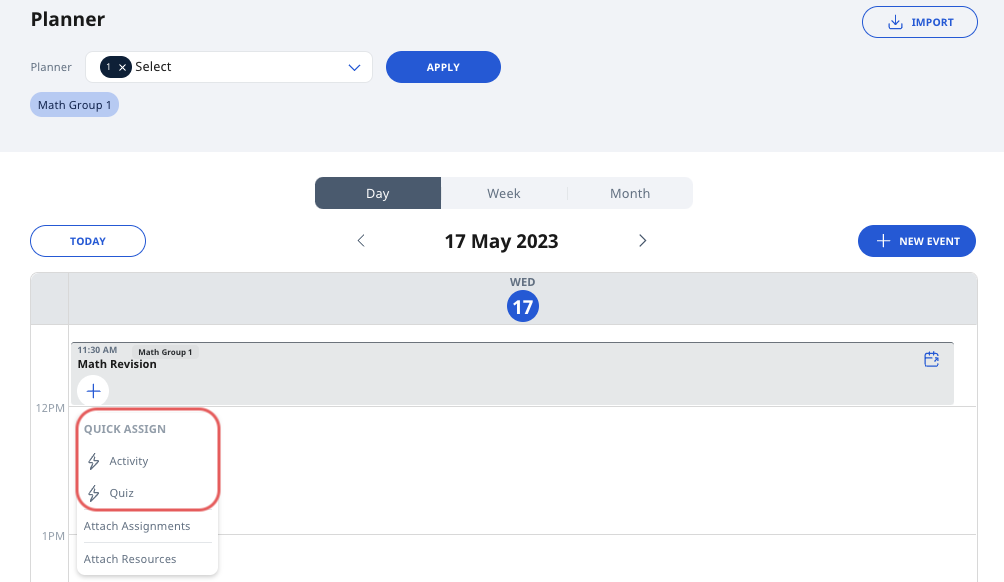
Click the + button to Quick Assign an Activity or Quiz.
-
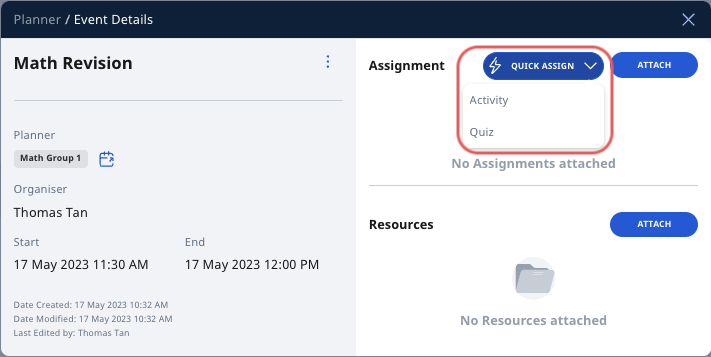
Alternatively, you can click on the Event to open the Event Details. Then click Quick Assign and select Activity or Quiz.
-
Once selected, a paused, untitled Assignment will be created in the Class Group and attached to the Event.
-
You will be directed to the Module Editor page of the Assignment.
Video Tutorial
The “My Lessons” tab shown at 00:18 has been relabelled to “My Modules” tab.