

Manage Groups
Pin Class Groups
-
From the homepage, open the left menu and click Class Groups, followed by All Class Groups Alternatively, in the Class Groups tab from the homepage, click Class Groups. By default, you will be in the Current tab..
-
You can filter current Class Groups by Type and Role..
-
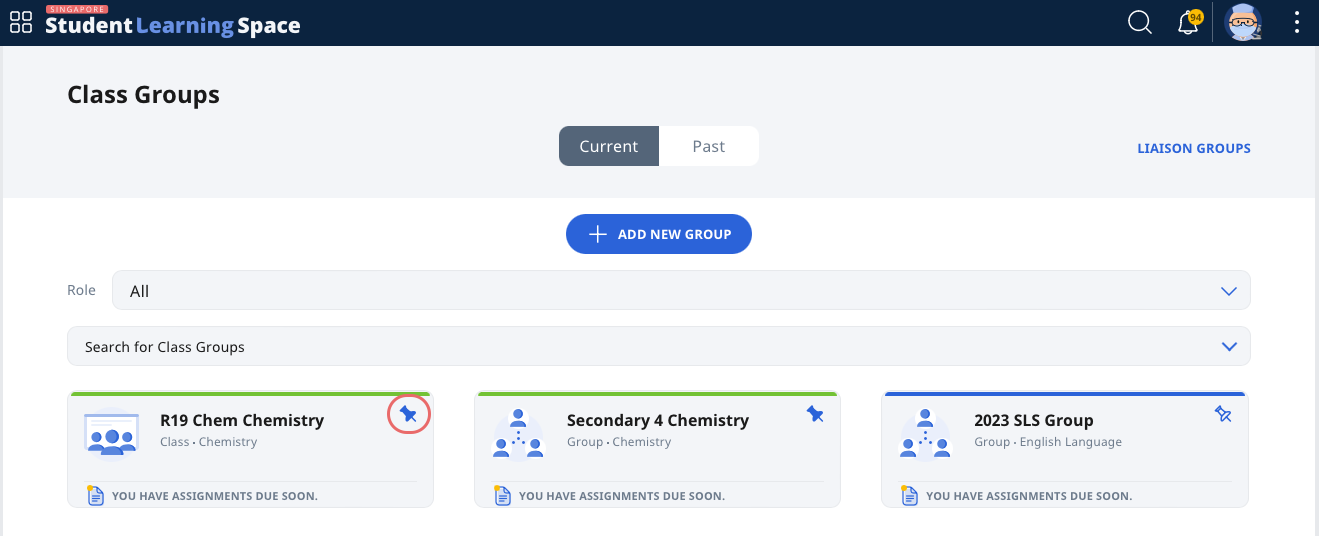
A Class Group can be pinned and unpinned by clicking the Pin icon on the top right of the Class Group card.
-
Alternatively, enter a Class Group by clicking the Class Group card from either the homepage (under the Class Groups tab) or Class Group page. Click the Pin icon found beside the Class Group name.
-
Pinning a Class Group allows quick access to the Class Group. Below is a list of interactions that take place when a Class Group is pinned.
-
Pinned Class Groups will:
-
appear first under the Class Groups tab on the homepage.
-
appear under Class Groups from the left menu.
-
appear at the top of the list of Class Groups on the Class Groups page.
-
appear at the top of the list of Class Groups when assigning a Module.
-
appear at the top of the list in dropdown fields involving Class Groups (e.g. when viewing Class Group Notifications).
-
appear by default in the Planner.
-
-
Archive Class Groups
Class Groups (Group) created in SLS can be archived when they are no longer needed.
-
To archive a Class Group, enter the Class Group by clicking the Class Group card.
-
Under the Admin tab, click Archive Group.
-
Archiving the Group cannot be undone. Once a Class Group is archived, it will appear under the Past tab which will still be accessible to both teachers and students. Assignments and other records associated with this Class Group will also be accessible.
-
For an archived Class Group,
-
teachers will no longer be able to assign Modules to it, and
-
all users will not be able to create new Forum Posts and Polls.
-
View Past Class Groups
At the start of each academic year, all Class Groups from the preceding year will be found under the Past tab.
-
From the homepage, open the left menu and click Class Groups, followed by All Class Groups. Alternatively, in the Class Groups tab from the homepage, click Class Groups. By default, you will be in the Current tab.
-
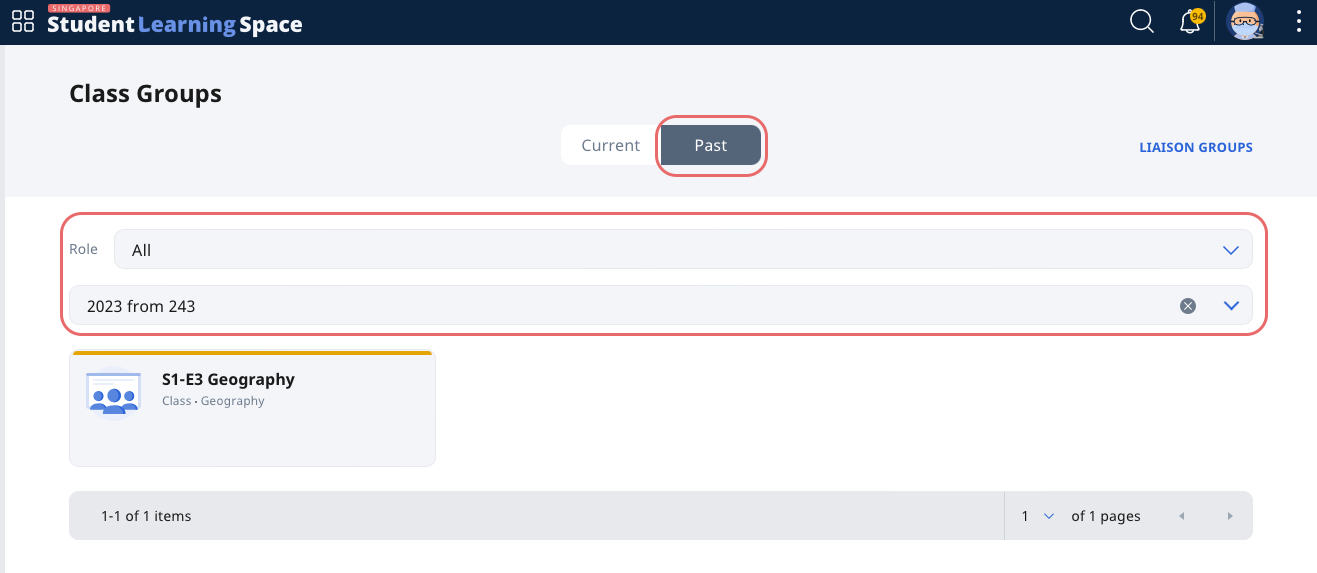
Click the Past tab. If you have past Class Groups from multiple years, use the dropdown menu to navigate through the years.
-
You can filter past Class Groups by Role and year (and school, if you have taught at more than one school).
-
Archived Class Groups will also be found under the Past tab.
Note: There is no way to delete a Class Group. Assignments, Resources, Forum cards and Apps found within will still be viewable.