

Change Profile Settings
Display Name
Sometimes, your students may not know you by your default name shown on SLS.
You may change the display name to an alias that your students identify you by. This display name will be used when you leave Announcements or Comments for students.
-
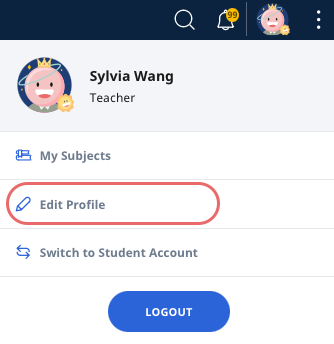
Open the right menu and click Edit Profile.
-
On the Edit Profile page, under the Profile section, enter the name you would like your students to see under Preferred Name, found below the Avatar.
-
Click Save.
Default Email Address
For Teachers in Schools
The default email address used in SLS for teachers in schools is your iCON email (ending with @moe.edu.sg).
If you do not have an iCON email, you will have your CES email as default (ending with @schools.gov.sg).
If you have neither iCON nor CES email, your default email should be the official email address in your MIMS account.
For MOE HQ Officers
The default email address used in SLS for teachers in MOE HQ is your WOG email (ending with @moe.gov.sg).
Setting an Alternate Email Address
Instead of using the default email address, you may also choose to provide an alternate email address for SLS system notifications. SLS Notifications and verification codes will be sent to this email, if specified.
-
From the homepage, open the right menu and click Edit Profile.
-
Under Account Settings, click Set Email Address.
-
If you are logging in to SLS for the first time, you will be prompted to enter a verification code. Check your email immediately to obtain the verification code.
-
Enter your Alternate Email in the space provided.
-
Click Save.
-
A confirmation prompt will appear. Click Proceed to send the verification code.
-
Check your email immediately to obtain the verification code.
-
Enter the 6-digit verification code and click Proceed.
Note: The verification code is only valid for 10 minutes.
Set Email Notifications
You can choose to receive email notifications from SLS. Notifications will be sent to your default email address or alternative email address (if specified).
-
From the homepage, open the right menu and click Edit Profile.
-
Under Account Settings, click Set Email Notifications.
-
Select the checkboxes to the categories you wish to receive email notifications from:
-
Class Group Announcement
-
Assignment
-
Forum
-
Resources
-
Admin (Announcements from all Content Maps, Modules, Media and Reports)
-
-
Click Save to confirm.
Customise an Avatar
A graphical representation of a user, also known as an Avatar, is used to represent you.
-
Open the right menu and click Edit Profile.
-
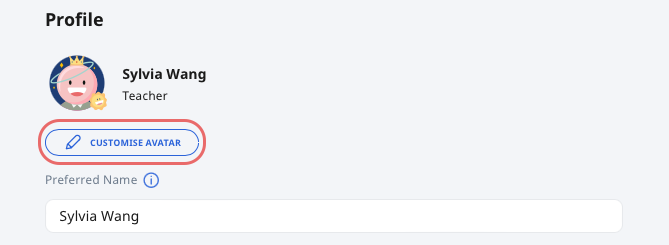
On the Profile page, click Customise Avatar under Profile.
-
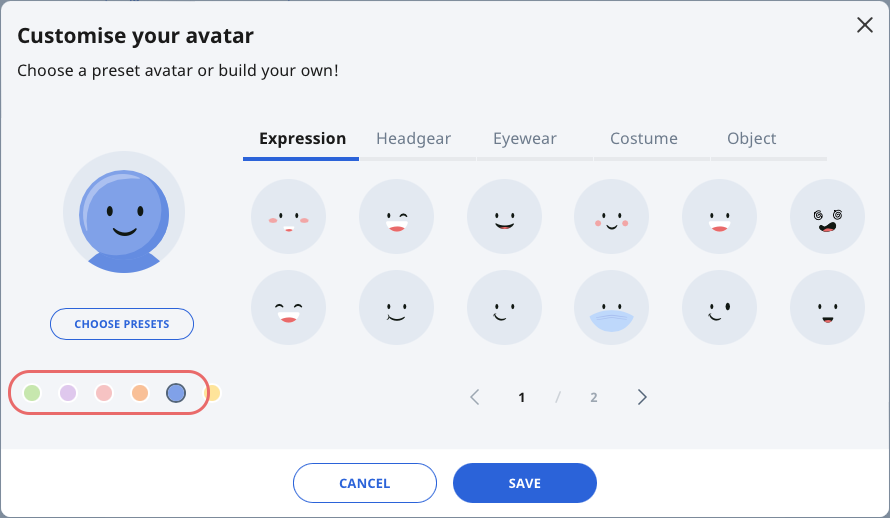
You can either select 1 from the 24 preset avatars, or build your own.
-
To build your own Avatar, click Build My Own. To return to the preset Avatars, click Choose Presets.
-
You can select the base colour of your Avatar by clicking the colour palette
-
-
Select an Expression, Headgear, Eyewear, Costume, and Object from the respective tabs. Click the Left and Right arrows at the bottom to view the available options for each tab.
-
Click Save to proceed.